
Information Systems
Creating Suppliers
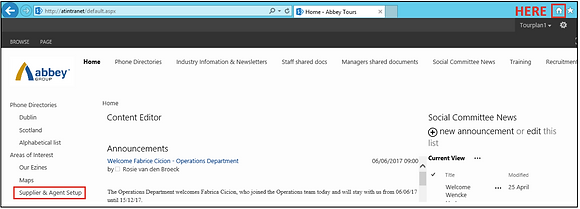
We have 2 different options to create new suppliers. The most common and useful for us (we should prioritize) is doing it with the supplier form. Someone has to send to us a filled form they can find opening Internet Explorer and the Intranet (small house, top right) and click on Supplier & Agent Setup.
http://web1/setup/send.aspx is the link of the online setup form. Bottom right is the link where you can have a look at all the agents and suppliers which have been created, when and who asked for it.

We will receive the link, and after clicking on it we will see something similar to the form below:

If given a new creditor (supplier) to set up, always insert the requested service lines. In case no service lines are given, please ask which ones are required.
After checking that all details are correct, we will set the supplier up in the database we need it:

If we have to set up the supplier manually because it’s an urgent situation or something is wrong with the form access, we have to follow the next steps:
Financials/Creditors
-
Select Financials and then select Creditors
-
Always search creditors to see if supplier already exists (in all three TPS)!
To make sure not to insert a duplicate supplier you can either check it in the drop down menu or go on find and insert a part of the name then search -
Search using first three letters of supplier name for example ‘Lau’ for Laurels Pub

Insert Supplier
-
When a supplier does not exist in Tourplan you can click ‘insert’ to enter your new supplier
-
You must select a code number that is the next number after previous supplier of the same letters like above code for new supplier will be LAU004
-
Codes with numbers of 100 or higher are all Bed and Breakfasts in Ireland
-
All B&B should be loaded with their owners name in the first line of the address
-
Codes with numbers of 500 or higher are all Scottish or English suppliers.
Codes with number of 700 or higher are all Scottish or English B&Bs.
These suppliers must be entered into both TP (Irish and Scottish) -
Please make sure you keep the same code in both systems
-
Use first three letters of supplier name for code and use the next available three digit number
-
Enter full supplier name like below and click ‘OK’

Add New Supplier Wizard – Set Up Details
-
Insert Physical and mailing address of supplier. If mailing address is same as physical address just click ‘copy physical’

-
Please make sure if the supplier is Scottish insert Scotland in the COUNTY field if English then England!!!
-
Do not use Co. or County when inserting the county only the name e.g. Dublin and not Co. Dublin
-
When you have a different address for invoices please use the mailing address for inserting it
-
Click ‘Analysis’ and select relevant Chain, if none select 00 Independent
-
Click for relevant area example is in Dublin region
-
(don’t forget these are regions and not counties as in the Database)
-
Click Method of payment, this is almost always set to Cheque
-
Click Service type, this depends on the service being provided, e.g. Hotel, Visit etc.
-
Click Supplier Country, this depends on where the supplier is based, e.g. Scotland, England or Republic of Ireland.
-
Click forward to move on

+Type
+Country
Supplier Currencies
-
Select either euro or sterling depending on what the supplier is paid in. It is very important you select the correct currency for your supplier as it has knock on effects on whole system.
-
If the supplier is Irish the currency is Euro;
-
If it is from Northern Ireland check if we pay it in Sterling;
-
If it is Scottish or English the currency is GBP in both systems
-
In the example euro is selected (move to right hand side) and in terms it is set at 0 days after invoice. All creditor terms should be 0 days after invoice.
-
Tick the box if the supplier is tax registered or not (you will find the information on the supplier form) – Note that if the supplier is not registered, the service line will have to be set up as tax Exclusive
-
Note: Never use any other currency other than Euro & GBP!! Regardless of where the agent is from.
-
When finished click forward

Supplier Service Defaults
-
Do not select anything on this page. Click forward to move on.

Internet Details
-
No information is required on this page.
-
Click forward to continue

Amenities
-
No information is required on this page.
-
Click forward to continue

Policies
-
No information is required on this page.
-
Click forward to continue

FYI Messages
-
No information is required on this page.
-
Click forward to continue

Supplier Contacts/Notes
-
Click insert contact

-
Insert all information in contact details
-
Click ‘OK’ and then cancel screen so details will appear
-
Normally use OP contact type for inserting the details
-
Contact type for suppliers can be:
-
RE – Accounts Department Contact
-
GM – General Manager
-
OW – Owner
-
SA – Sales
-
You need to always insert an OP and a RE contact!
-
Please load the Accounts details under RE contact type and insert either the name of the contact person without any title or addition information or in case the contact name is unknown insert simply Accounts Department!!! but never both!!
-
If the contact does not fit any of the above please use OP – Operations
-
Ensure when inserting phone/fax details that country code is included and there are no spaces or marks between digits e.g. 00353 for Ireland
-
Please do not forget to insert 0 for Italian numbers! It should look like 00390….. (But for other countries there is no 0 after the country calling code)
-
Web address has to be inserted for each contacts of the supplierClick insert if you have more contact details otherwise click forward
If you have more then one phone number for the same contact please create a new option for that and take the same name then add the second number
(Same with the other details)


Below you can enter important note or conditions for this specific supplier.

-
when the supplier is deleted because it was inserted as a duplicate supplier please insert the new code in front of the supplier name and also under supplier related notes
Header: the current year you inserting it for in bold, size of letter 16 and underlined -
If it is deleted for any reason please load it under supplier related notes
-
When complete click save and you will return to Set-up Details page.
-
Your supplier should now be inserted into the system. Until you click save on the above page the supplier is not complete.
Do not forget to send the bank details to the Accounts Department:
Bank details for M&K suppliers – send it to Tim Heyman
Bank details for Irish/Scottish suppliers – send it to Patrick Fischer