
Information Systems
Creating Debtors
We have 2 different options to create new agents. The most common and useful for us (we should prioritize) is doing it with the agent form. Someone has to send to us a filled form they can find opening Internet Explorer and the Intranet (small house, top right) and click on Supplier & Agent Setup.
http://web1/setup/send.aspx is the link of the online setup form. Bottom right is the link where you can have a look at all the agents and suppliers which have been created, when and who asked for it.

After checking all the information is correct, we need to know if we can block this agent or not. For that, if the form is NOT filled with the VAT and accounts contact information (in case of non-UE countries we only need an accounts contact) we have to block the agent (otherwise we don’t block it).

Clicking in CREATE AGENT our agent will be ready to use.
But we can set up an agent manually too, following the next steps:
Financials/Debtors
-
Select Financials and then select Debtors
-
Always search debtors to see if agent already exists
-
Search using the first three letters of agent name either in a dropdown or using find option for example ‘LAU’ for Laurent Tabutin
-
When you click on find to look for an agent you can either insert the first 3 letters of the name or full name/pert of the name in the name row and click on search then you will get the list of the agents with the provided information
-
An agent should be blocked if any of the necessary information is not provided: Company registration number (=VAT number) and account email address etc (Unless the agent is coming from a non-European union contry, in this cases only accounts contact is needed)
-
You can order them by name, country, postcode… with double clicking on the header of the column

Insert Agent
-
When the agent does not exist in tourplan you can click ‘insert’ to enter your new agent
-
You must select a code number that is the next number after previous supplier of the same letters like above code for new supplier will be LAU007 (we need to be sure of the availability of the code we are choosing)
-
Use first three letters of agent name for code and use three digit number LAU007
-
Enter full agent name like below and click ‘OK’
-
If the agent is blocked then add “(blocked)” after his name

Add New Agent Wizard – Set Up Details
-
Insert Physical and mailing address of agent. The mailing address is entered the same as physical address automatically but it can be edited if necessary
-
Use mailing address field for invoices if needed

-
Please make sure if the agent is Scottish or English insert “Great Britain” in the COUNTY field.
-
NEVER LEAVE THE COUNTRY FIELD BLANK and MAKE SURE IT IS A COUNTRY, NOT A COUNTY
-
Click ‘Analysis’ and select relevant country in this example country is Spain NEVER LEAVE THE COUNTRY BLANK
-
Click Region, all regions are set up for France and Germany but in this case select HO Home counties for Ireland (for other cases if the region is not inserted in Tourplan select 00 N/A not applicable)
-
Click Agent Group 2014/2012, and select GE unless otherwise advised
-
Click Fit credit and select ‘No’
-
Click 2013 Agent Group and select ‘GE’ general

In M&K :
Agent Credit: No
FIT/Group: unassigned
Type of Agent: unassigned
-
Click ‘Booking/PCM Defaults’ just next to ‘Analysis’
-
Click Coach/Guide 2014, and select GE unless otherwise advised
-
Click Itinerary status 2015, and select GE unless otherwise advised
-
Click forward to move on

IN M&K:
Leave everything on this page to unassigned
Agent Currencies
-
Select both Euro & Sterling in Tourplan Ireland & Scotland.
-
In the example euro is selected (move to right hand side) and in terms it is set at 14 prior to travel meaning the agent needs to pay 14 days prior to travel. All debtor terms should be 14 days prior to travel.
-
If new agent setup form is not completed (the marked information not provided) then the agent needs to be blocked!! It means insert €1.00 credit limit so it can’t be invoiced until all information received.
Once the agent is blocked a note (blocked) should appear after the agent name so it can be seen from booking; VIA is one of our largest Scandinavian agents so you don’t need the VAT number or an AC contact to unblock them. -
Always tick ‘Use as Default Currency’ box for Euro for TP Ireland (all suppliers) and Sterling for TP Scotland.
-
When finished click forward

Agent Price Codes
-
Updated General Rates & General Price code are automatically selected.
-
If agent has special price code you need to pull that across to right hand side also and out it in the first place
-
Price codes and order for agents:
- From Germany: GR -From France: FR -From the USA: US
UG UG UG
GE GE GE
-
For agents not from the areas above:
UG
GE
-
Click forward to continue
The order of the price codes is important!

In case you are told to insert a TA price code, change all GE price codes to TA:
When creating or editing a debtor that uses the TA price code in Analysis & Booking/PCM default like so:

Please ensure that TA is also selected in the price code selection, as seen here:

Agent Allocations
-
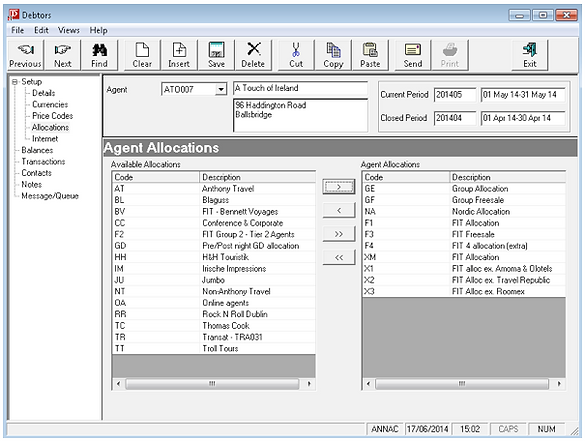
Select appropriate allocation; group (if nothing specified, always GE, GF, NA, F1, F3, F4, XM, X1, X2 & X3), FIT or conference and corporate
-
Pull correct allocation to the right hand side like below
Click forward to continue
Internet Details
-
On this page, this is where logins and passwords are setup for certain agents.
-
Click forward
Agent Contacts/Notes
-
Click insert contact

-
Please use various contact codes in system. If the contact is not any of the below enter as a sales contact (SA).
A8 - Abbey Tours Fam Trip Contact 2008
AC - Accounts Department Contact
AS – Association
CC - Conference & Corporate contact
CO - C&C Operations Department Contact
CS - C&C Sales Department Contact
F8 - Failte Ireland Fam Trip Contact 2008
FO - FIT Operations Department Contact
FS - FIT Sales Department Contact
GM - General Manager
GO - Group Operations Department Contact
GS - Group Sales Department Contact
II - Ireland Inbound
IN - Incentive
OP - Operations Contact
OW – Owner
RO - Registered Online
S8 - Overseas Sales Trip Contact 2008
T8 - Trade Show Contact 2008
SA – Sales
VC – Voucher Contact
WE – Web Contact
If there is no name for AC contact, please use Accounts Department.
-
Insert all information in contact details
-
Click ‘OK’ and then cancel screen so that details will appear
-
Ensure when inserting phone/fax details that country code is included and there are no spaces or marks between digits!!!
-
If there is a job title, insert it after the name using space – space and the title, do not do this for an accounts contact!!!!!!!


-
Click save and you will return to set-up details page. Your agent is now set up in tourplan.
-
And now you need to do the same in the other Tourplan as well.
-
Agent code must be the same in both Tourplans!!!!
-
Whenever you need to change a debtor code please insert a note under company profile what was the old name and code!
N.B.:
To unblock an agent with the agent form:
-
You need the company registration number/VAT number (only existing for European countries except for Switzerland!)
-
You need an account contact (email address for the invoice)
-
Don’t forget to delete “(blocked)” after the name of the agent
-
Don’t forget to insert €0.00 credit limit in currencies instead of €1.00 credit limit
-
Make sure you save the agent form in N:\ITshared\Tourplan\Zsuzsanna - Tourplan\Agent Forms with the name of the agent and the Tourplan code